canvas-cli
Canvas LMS in your terminal. Browse courses, open assignments, check grades, and ask questions an assistant answers from your own course material, with the page it came from.
Works With
- Any school on Canvas LMS
- macOS and Linux
- Windows, through npm
- Claude, GPT, and Gemini
- AWS Bedrock
- GitHub Copilot plans
- ChatGPT plans
Overview
canvas-cli is a terminal interface for Canvas. It downloads what your courses contain, the files, pages, announcements, and lecture links, into a local cache, and opens each assignment as a workspace with a brief, a plan, and every source it read. The assistant on top answers from that material and checks its own answer before you see it. Course material, workspaces, and chat history stay in your project folder.
Start Here
Install
The install script puts a single self-contained binary in ~/.local/bin, so there is nothing else to set up. If you already use Node.js, the npm package works everywhere, Windows included.
curl -fsSL https://raw.githubusercontent.com/reyabsaluja/canvas-cli/main/install.sh | bashChecks the download against the release’s SHA-256 sums before installing. Run it again any time to update.
npm install -g @reyabsaluja/canvas-cliNeeds Node.js 20.10 or later. Works on Windows.
bun add -g @reyabsaluja/canvas-clinpx @reyabsaluja/canvas-cliRuns the latest version without installing it.
Then start it from the folder you want to keep your coursework in:
mkdir -p ~/school && cd ~/school
canvas-cli
The first run walks you through connecting to your school’s Canvas with a personal access token and, if you want the AI features, picking a provider. The Quickstart goes through it step by step.
What It Does
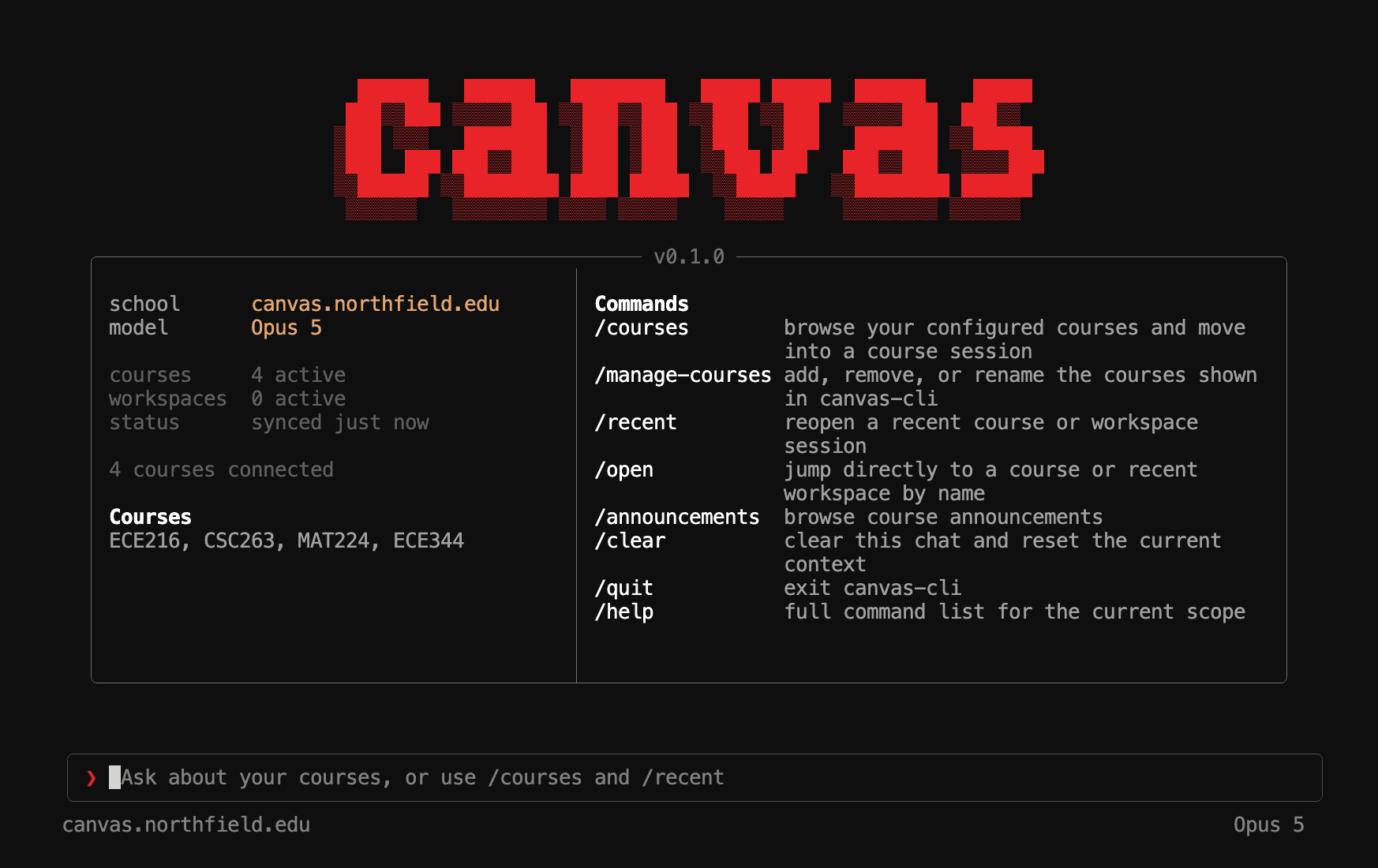
canvas-cli opens into a chat shell. Type a question, or a slash command: /courses moves you into a course, /assignments into an assignment, and /recent to a list of the courses and assignments you opened before. The header always says where you are, and /help only lists what works there.
Opening an assignment for the first time turns it into a workspace. canvas-cli reads the instructions, the attached files, the syllabus, and anything the course links to, then writes an assignment brief, a step-by-step plan, and a record of which facts came from where. The second time you open it, it loads instantly.
A few commands run outside the shell: canvas-cli login to connect, canvas-cli status to check what is configured, and canvas-cli ingest to download a course ahead of time.
Grounded Answers
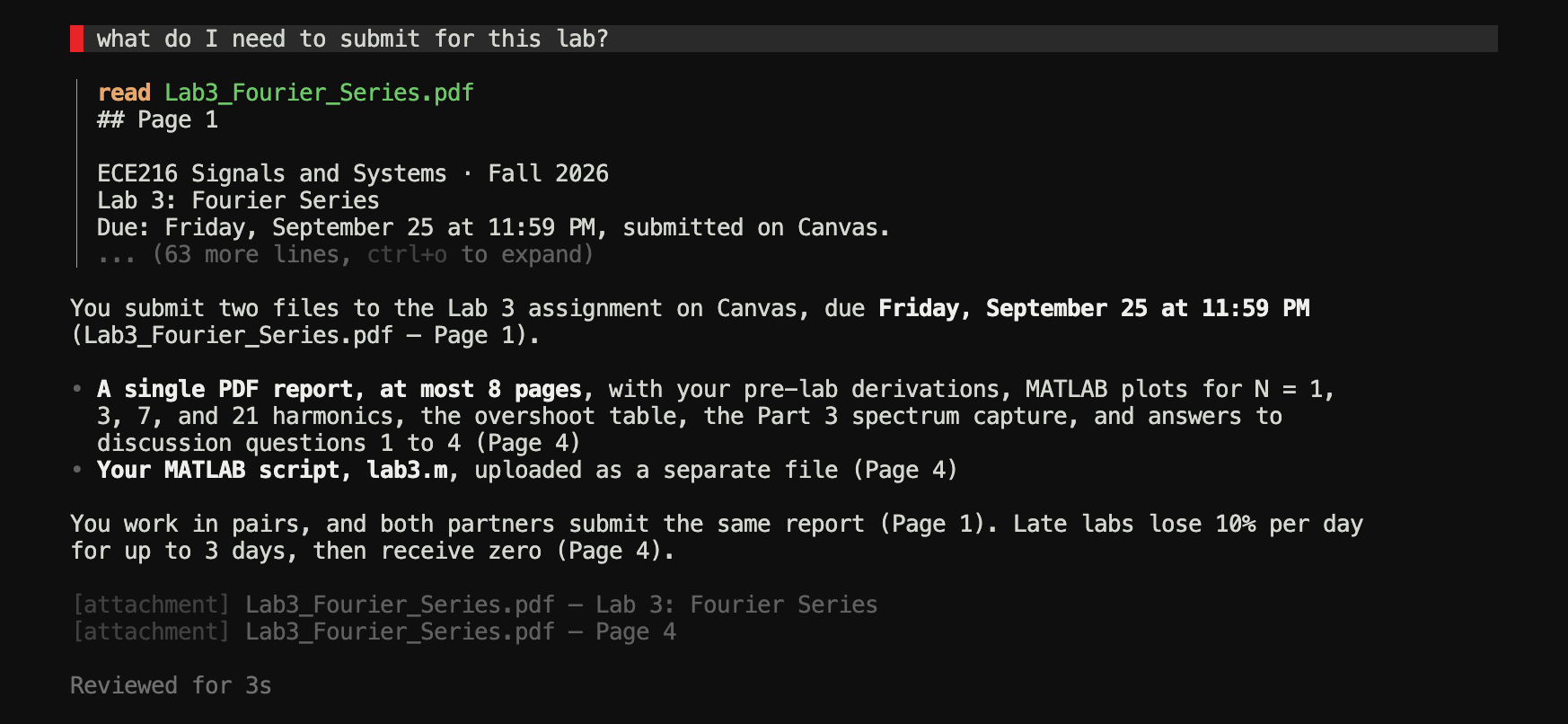
Ask what you need to submit, when a lab is really due, or what you lost marks on last time, and the assistant searches your course before it answers. It reads the actual documents rather than guessing from their titles, and in an assignment workspace every answer names the section it came from, down to Lab4.pdf — Page 57.
Once a workspace answer is written, every date and figure in it is checked against what the assistant actually read. Anything it could not confirm is flagged in the answer, and its confidence drops. When something is not in the course at all, it says so and lists where it looked.
Study Tools
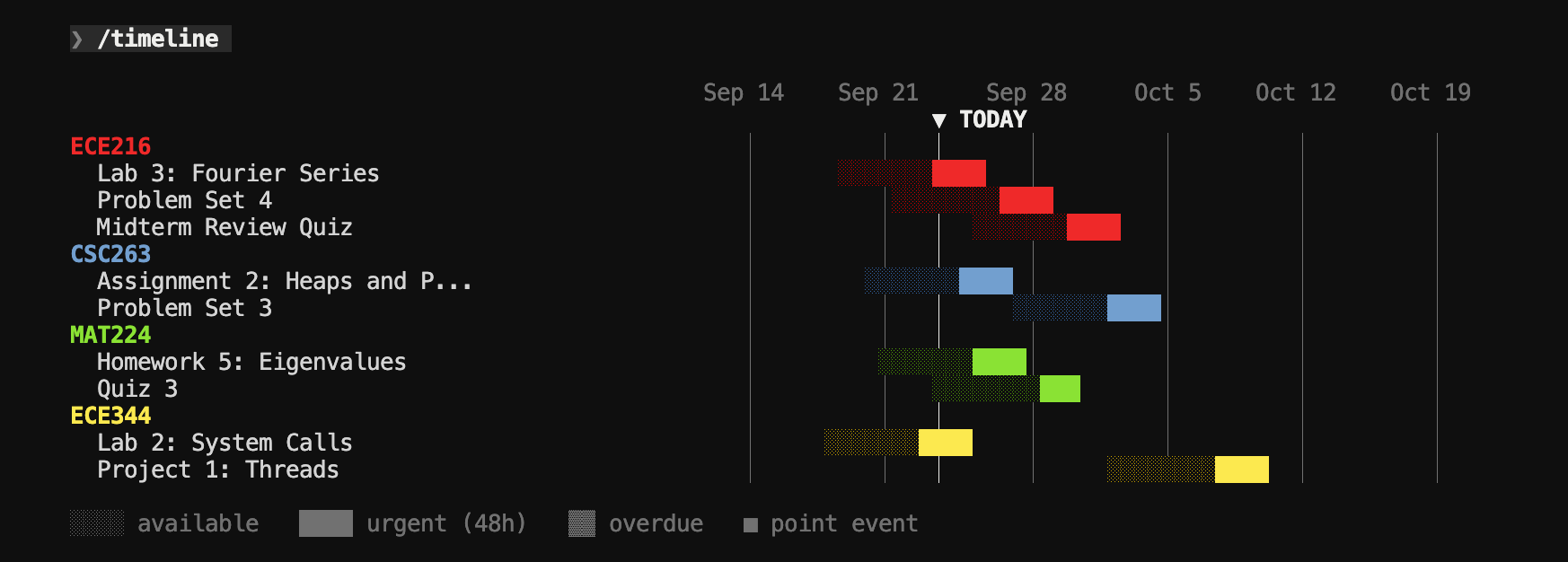
The rest of Canvas is a command away. /timeline draws everything due in the next week, month, or semester as a Gantt chart. /grade shows where you stand in each course and what you need on the rest to reach a letter. /quiz writes a practice quiz from the course material, and /pdf turns a conversation into a typeset study sheet.
Local First
Course material is downloaded once into a .canvas-cli folder in your project, and answers draw on those files. That makes answers fast and repeatable, and it means the assistant is working from what your instructors actually posted.
canvas-cli has no telemetry. Your Canvas token only ever goes to Canvas, AI keys only to their provider, and on macOS both live in the Keychain. Privacy and security lists every place data goes.
How It Works
Three layers, each usable without the next. The Canvas client talks to your school’s REST API with your personal token, retrying politely when Canvas rate-limits. Ingestion turns a course into plain files: JSON indexes, extracted text for PDFs and modern Word, PowerPoint, and Excel files, and pages it generates itself for quizzes, the grading scheme, and the course calendar.
The assistant sits on top. It works in a loop of up to 30 steps with a set of tools, such as searching the course, read a document or one page of it, list assignments, open a thread. In a workspace, a verifier then checks the answer against the evidence and flags anything it could not confirm. It runs on Claude, GPT, or Gemini through their APIs, or on the GitHub Copilot or ChatGPT plan you already pay for.
Next Steps
- Quickstart: sign in, pick your courses, and ask your first question
- Assignment workspaces: what happens when you open an assignment
- Asking questions: how answers are found, cited, and checked
- Slash commands: everything you can type in the shell
- Troubleshooting: fixes for the common problems