Assignment workspaces
Open an assignment and canvas-cli reads everything relevant to it, then writes a brief, a plan, and a workup you can come back to.
Opening One
A workspace is an assignment that canvas-cli has already read for you. Open one from a course with /assignments, or reopen a previous one with /recent. The first time takes a minute or so while canvas-cli investigates; after that it opens instantly.
Preparation
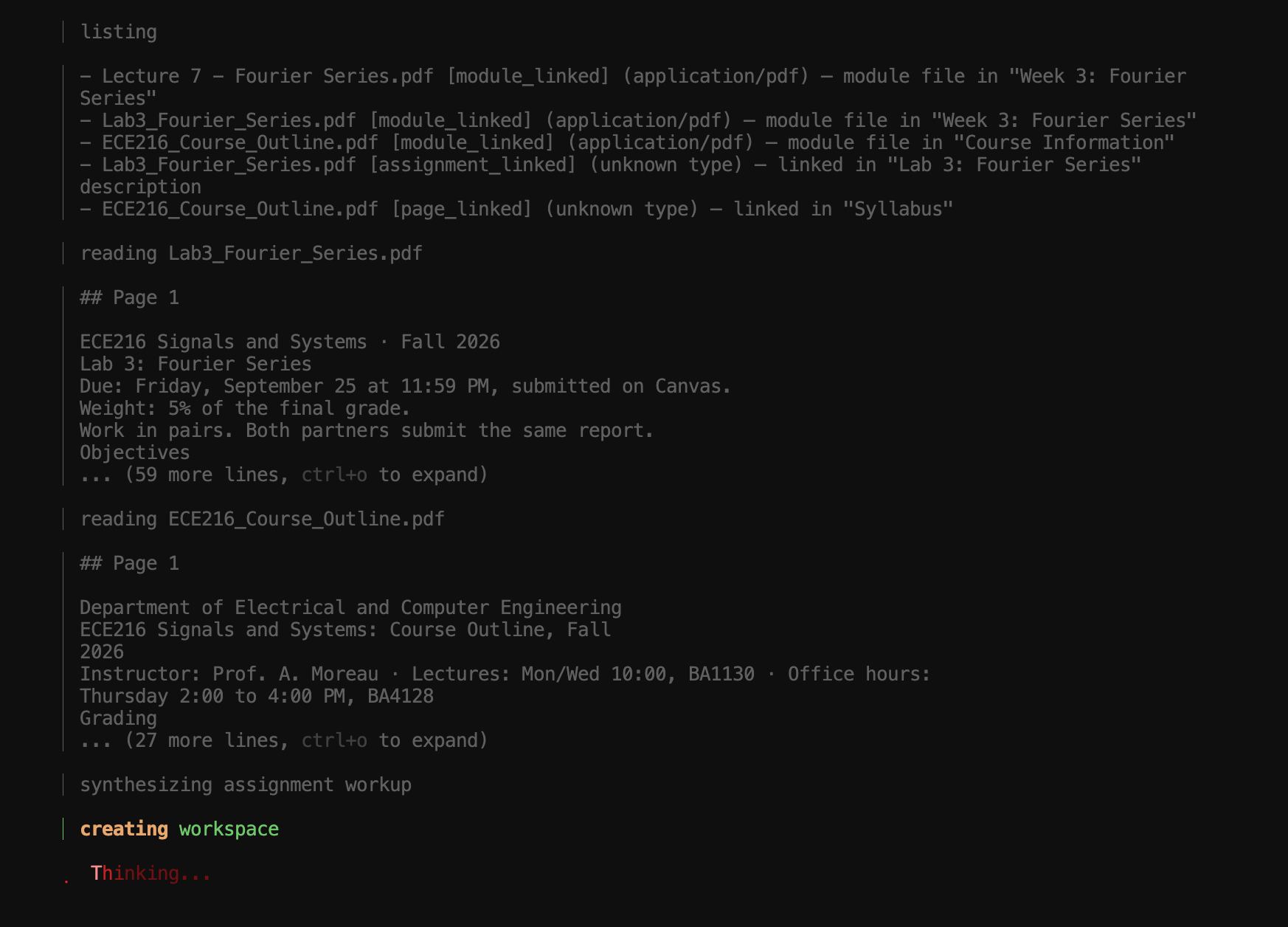
The progress screen shows each stage as it runs:
- Resolving the assignment from Canvas, with its description, dates, and rubric.
- Checking the course cache, and ingesting the course first if it has not been downloaded yet.
- Enriching the assignment with what the cache already knows: related module items, pages, and files.
- Investigating. An agent with up to 15 steps lists the downloaded files, searches modules, and reads documents: the first 60,000 characters, or any single page or heading of a longer one. It is not allowed to stop early until it has read the main instruction document and confirmed where the due date comes from. If it runs out of steps first, the workup lists what is missing under open questions and lowers its confidence.
- Synthesizing what it found into a structured workup: overview, deliverables, constraints, resources, a reading order, an action plan, open questions, and a trace of which source each conclusion came from.
- Creating the workspace on disk, and opening it.
If the AI provider fails partway through (a rate limit, network, or sign-in error), the workspace is still created, marked as partial with low confidence, so you are never left with nothing.
Views
Inside a workspace, these commands show parts of the workup without asking the model again:
| Command | Shows |
|---|---|
/overview | What the assignment is and what is expected, in a few sentences |
/requirements or /reqs | Deliverables and constraints as two lists |
/plan | Numbered steps, each with the detail you need to do it |
/resources | The documents that matter, and why each one does |
/evidence | Each conclusion with its source, and the questions still open |
/status | Where the workspace lives, whether it is current, and how much was extracted |
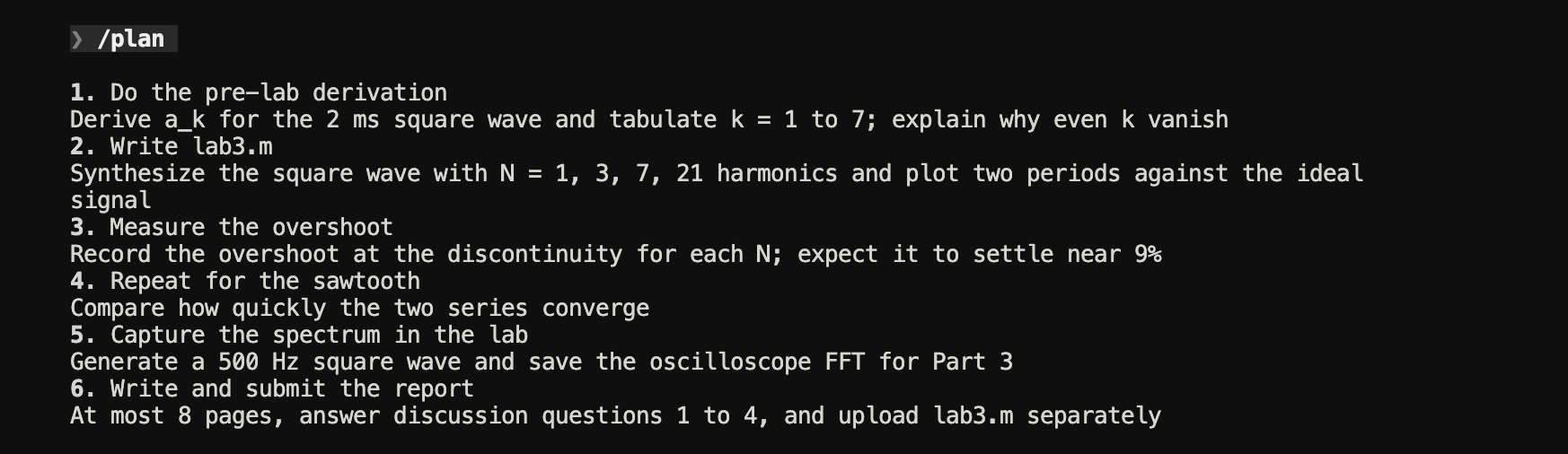
For anything the workup does not answer, just ask. The assistant goes back to the documents themselves; see Asking questions.
Files
Every workspace is a folder under .canvas-cli/sessions/, named after the course, assignment, and its Canvas id. You can open these files in any editor (see Local files):
| File | Contents |
|---|---|
assignment.md | The brief: due date, points, how to submit, overview, deliverables, constraints, resources, reading order, the source trace, and Canvas's original description |
plan.md | The action plan, each step with a goal, what to use, and what it produces, plus a deliverables checklist |
notes.md | A scaffold for your own notes. canvas-cli writes it once and never overwrites it |
workup.json | The structured workup the views above are drawn from |
assignment.json | The assignment as Canvas returned it |
session.json | When it was prepared and last opened, and its state |
extracted/ | The text of every document the investigation read |
attachments/ | Canvas files linked from the assignment description |
work/ | An empty folder for your own work |
exports/ | PDFs made with /pdf in this workspace, with their Markdown and LaTeX |
The conversation itself is stored separately, in .canvas-cli/chat-sessions/.
Due-Date Conflicts
The investigation records the due date a course document states, even when Canvas has one too, and compares the two by calendar day. assignment.md and plan.md then say which case you are in:
- **Due:** Fri, Sep 25, 2026 at 11:59 PM *(Canvas, matches the syllabus/schedule)*

- **Due:** Fri, Sep 25, 2026 at 11:59 PM *(Canvas)*
- **Due-date conflict:** the syllabus/schedule says **October 2**, which does not match Canvas. Confirm with the instructor before relying on either.
When they agree, and when they do not.
If Canvas has no due date, the document’s date is used and marked as inferred. A date is only taken from a document the investigation actually confirmed.
Staying Current
A workspace is stale when the course has been downloaded again since the workspace was prepared, for example after /refresh in the course. It still opens straight away, with stale · /refresh recommended in the status line, so you are never blocked.
Running /refresh inside the workspace downloads the course again from Canvas and redoes the whole investigation. It keeps your notes.md and your conversation.