Study tools
Timelines, grades, practice quizzes, lectures, announcements, and PDF export, straight from the shell.
Timeline
/timeline draws your upcoming work as a Gantt chart: one row per assignment, grouped by course, with a marker for today. In global scope it covers every course; in a course, just that one.
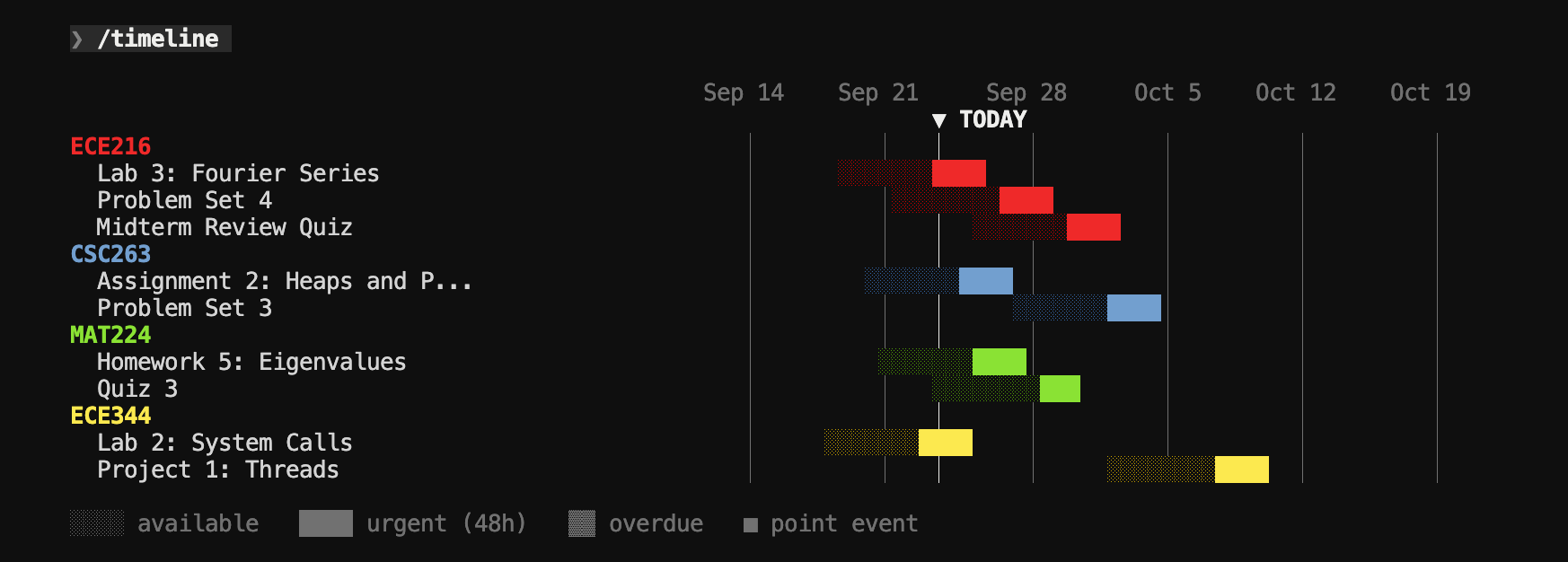
Each bar starts when the assignment unlocks, or a week before it is due if it has no unlock date, and ends when it is due. Light shading is time when the work is open, a solid block means due within 48 hours, a denser shade means overdue, and a small square marks something that happens at one moment; submitted work is dimmed. Work that has already been graded is hidden unless you add --all.
| Command | Shows |
|---|---|
/timeline | Two weeks back to four weeks ahead |
/timeline week | This week, Monday to Sunday |
/timeline month | This calendar month |
/timeline semester | From the earliest to the latest due date |
/timeline next 10 days | The past week through the next N days, weeks, or months |
/timeline --all | Include graded work; combines with any of the above |
Grades
/grade in global scope lists every course with its current letter and percentage, as Canvas reports it.
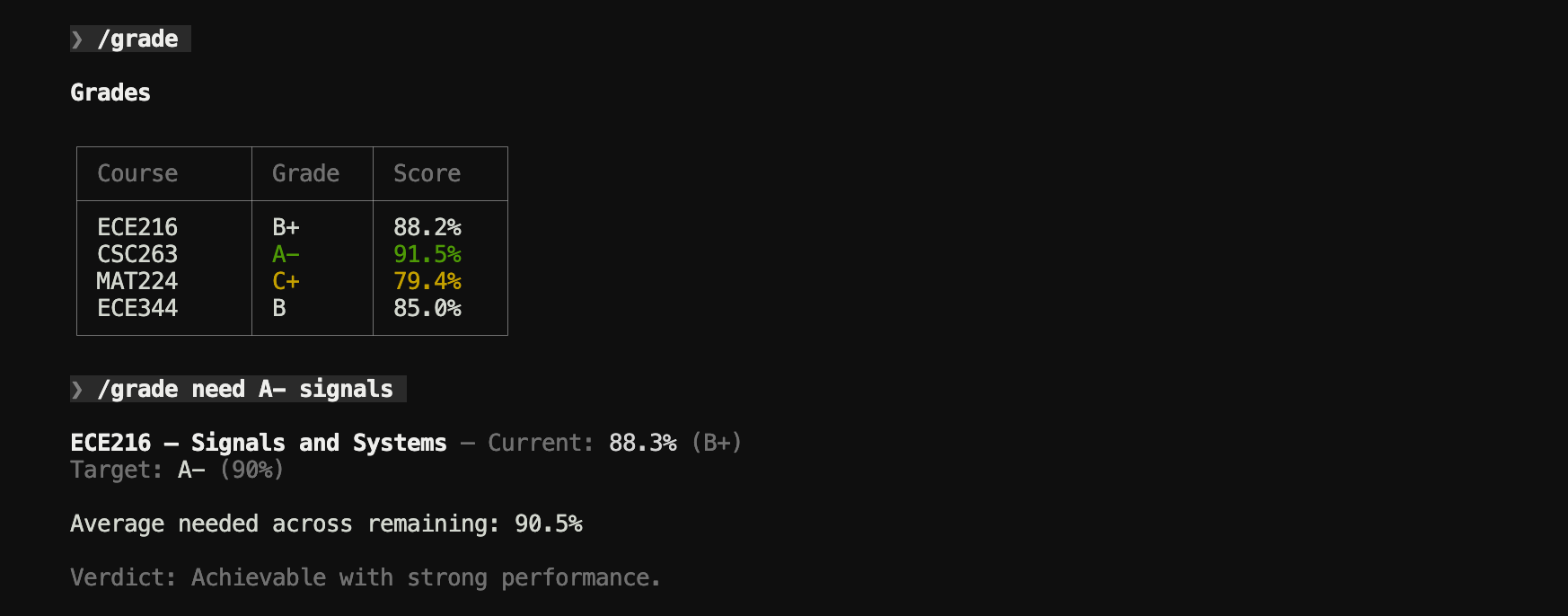
In a course, or with a course name (/grade signals), it shows the breakdown: each assignment group with its weight and average, every assignment’s score, what is still to come, and how much of the final grade has been decided so far.
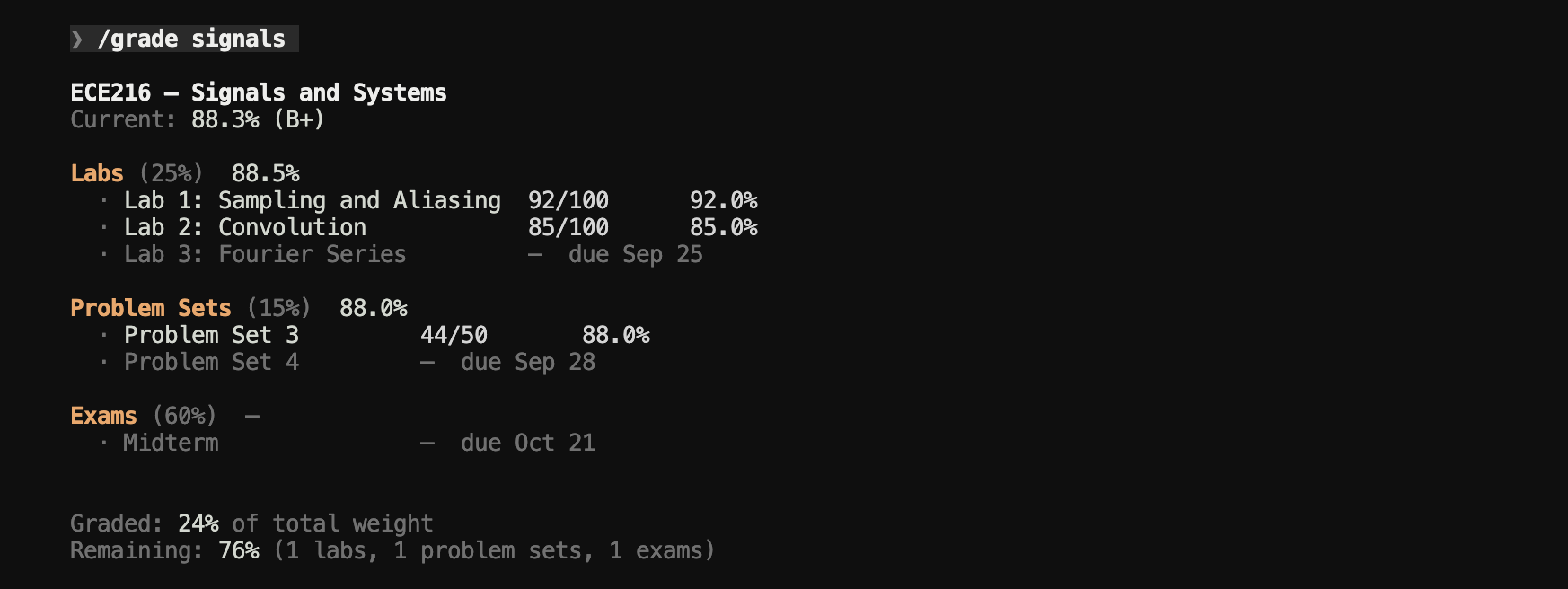
/grade need works out the average you need on the remaining work to reach a target. The target can be a letter from A+ down to D−, or a percentage. In global scope, name the course too:
/grade need A-            # in a course
/grade need 85 signals    # anywhere
It takes group weights into account, and ignores assignments excluded from the final grade. The answer comes with a verdict: very achievable, achievable with strong performance, possible but difficult, or not reachable, in which case it tells you the best you can still get. Letters use a standard scale (A from 93, A− from 90, B+ from 87, and so on down to D− at 60), which may differ from your course’s. The breakdown is calculated by canvas-cli from the assignment groups and does not apply drop rules, so it can differ slightly from what Canvas shows.
Practice Quizzes
In a course or workspace, /quiz writes a practice quiz from the course material and runs it full screen. It needs an AI provider, and outside a workspace it needs a topic or something already discussed to quiz on. Arguments can come in any order:
| Argument | Effect | Default |
|---|---|---|
| A number, 1 to 20 | How many questions | 5 |
easy, medium, hard | Recall, application, or multi-step reasoning | medium |
flash | Flashcards instead of questions | off |
| Any other words | The topic to focus on | What you were just discussing |
/quiz
/quiz 10 hard fourier series
/quiz flash eigenvalues
Questions are a mix of multiple choice, true or false, and fill in the blank, drawn only from your course material, the recent conversation, and in a workspace, the assignment itself.
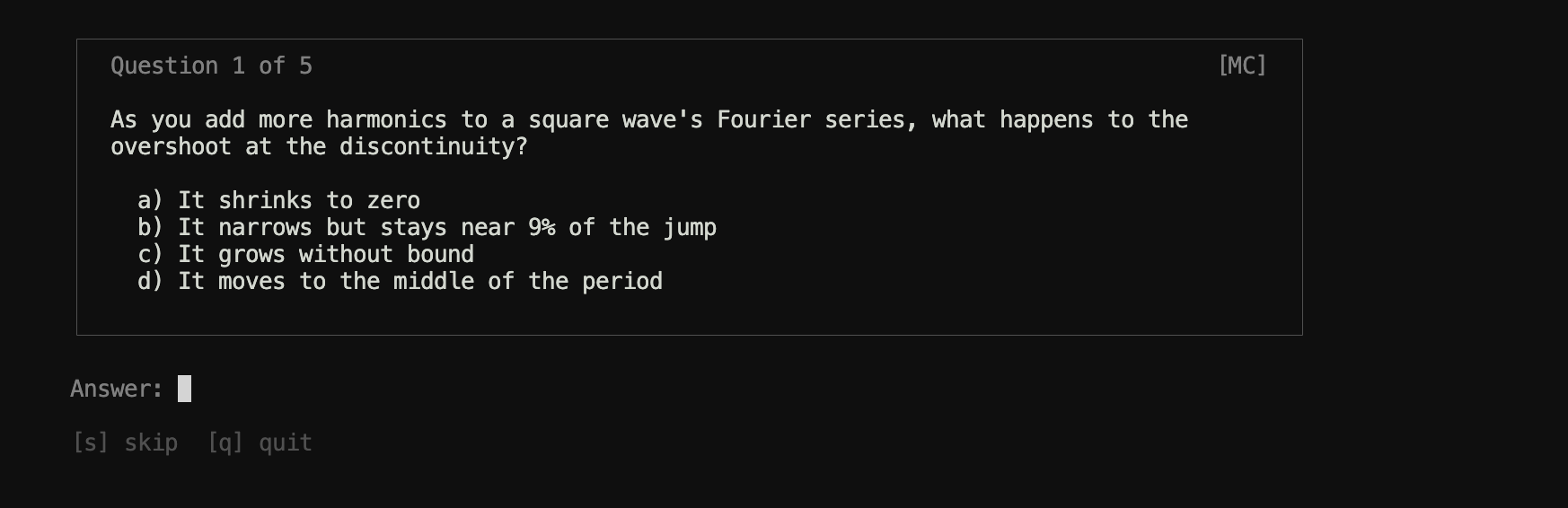
- Multiple choice: press a to d. True or false: t or f.
- Fill in the blank: type the answer and press Enter. Capitalization and surrounding spaces are ignored.
- Flashcards: Space reveals the answer, then y if you knew it or n if you did not.
- s skips a multiple-choice or true-or-false question (it counts as wrong), and q or Esc ends the quiz (in fill in the blank, q quits only before you start typing).
Each answer is followed by an explanation. At the end, your score and a breakdown by topic are added to the conversation:
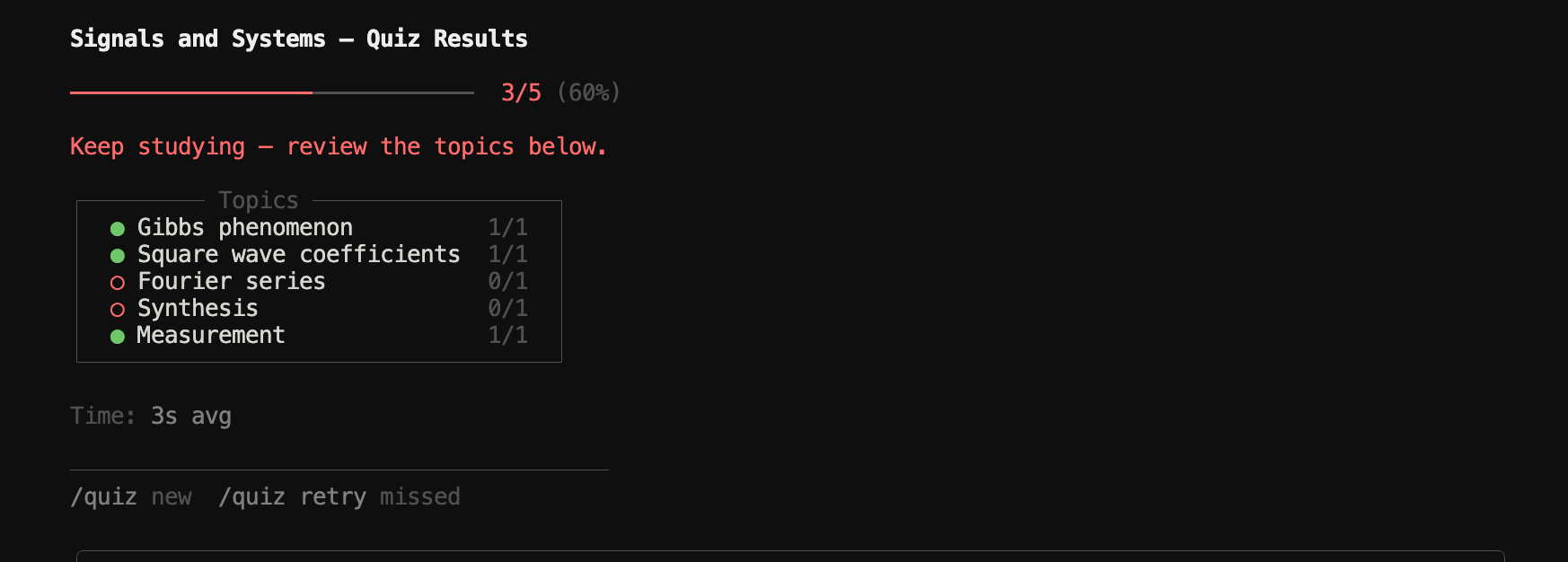
If you missed anything, /quiz retry asks those questions again, in the same conversation, until you close canvas-cli.
Lectures
/lecture (or /lec) finds lecture material in a course or workspace. With no argument it lists every lecture it knows about. With one, it opens the match: slides in your PDF viewer, recordings in your browser.
/lecture
/lecture 7
/lec 13 slides
/lecture gibbs phenomenon
Lectures are found by their titles (“Lecture 7”, “Week 3”, “Module 5”) and by embedded players from YouTube, Panopto, Kaltura, Echo360, Zoom, and other hosts. If a lecture has both slides and a recording, add slides or video to pick one.
Announcements
/announcements opens a full-screen list, newest first, across all courses in global scope or for one course. ↑ ↓ move, Enter reads one with its replies, and Esc goes back.
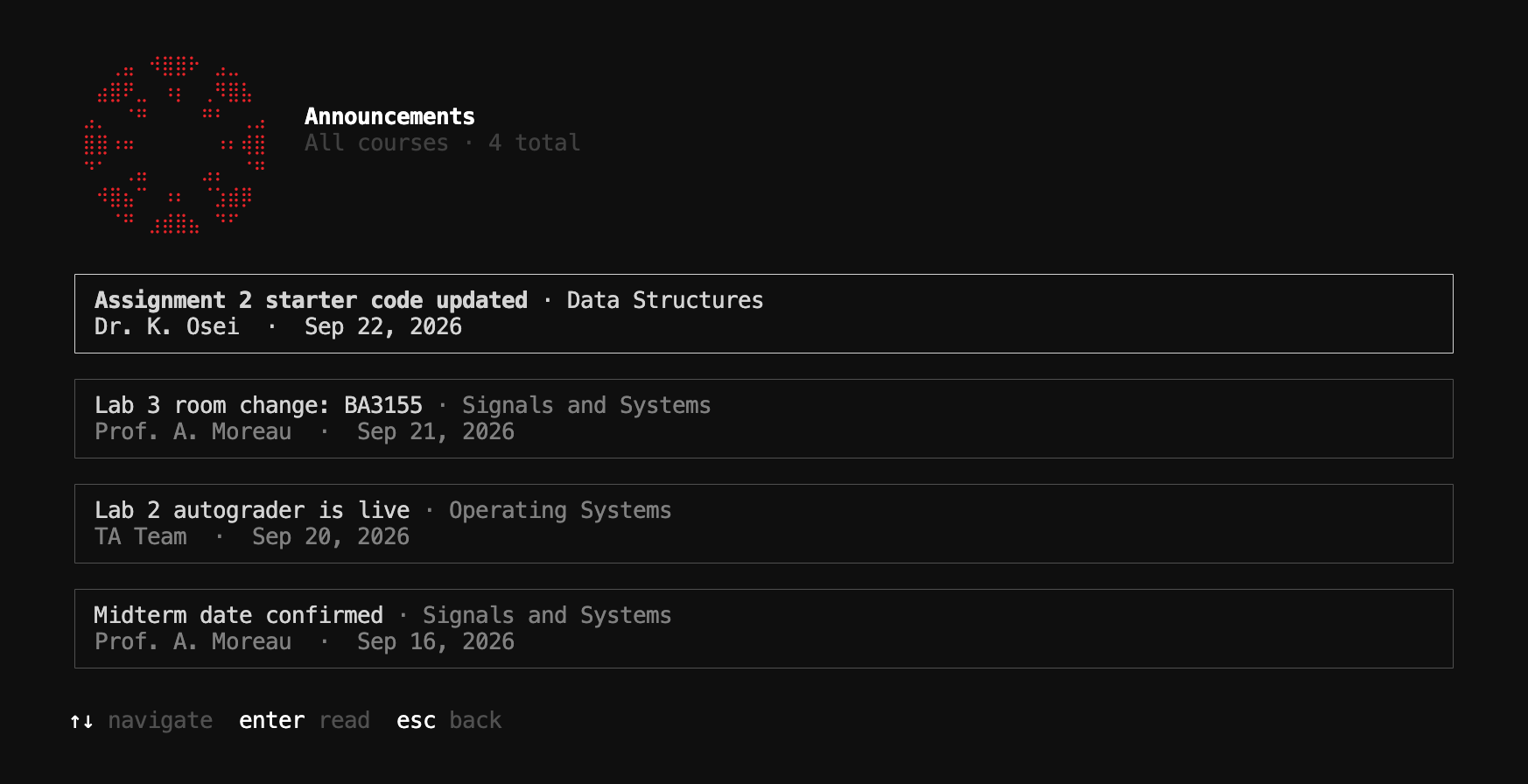
In global or course scope, /thread reads a discussion or announcement in the chat, with every reply nested beneath it. Give it the topic id or part of the title; if several match, it lists them.
/thread room change
/thread 701
Files and Modules
In a course, /files lists the downloaded files with their type and size, and /modules lists the course’s modules in order with how many items each has. Open anything they list with /open.
Opening Things
In a course or workspace, /open opens a file, page, or link with your system’s default app. As you type, a list of matching resources appears above the input.
/open lab handout
/open list          # everything that can be opened
/open it            # the last PDF you exported
You can also just ask: “open the lab 3 pdf” works the same way. For safety, canvas-cli only opens web links and files inside your workspace, course cache, or exports folder. In global scope, /open jumps to a course or workspace instead.
PDF Export
/pdf (or /make-pdf) turns the conversation into a study document. Say what you want in it:
/pdf a one-page summary of the lab requirements
/pdf formula sheet for the midterm
You can also end any message with /pdf. The model writes the document, and canvas-cli typesets it with LaTeX when a compiler is installed (tectonic, pdflatex, xelatex, or lualatex), so equations come out properly. If none is installed, it offers to install Tectonic (with Homebrew on macOS, or Chocolatey or Scoop on Windows) or to use a simpler built-in layout instead. If the LaTeX fails to compile, the model gets one chance to fix it before canvas-cli falls back to the simple layout. Without an AI provider, /pdf still works: it lays out the conversation itself in the simple layout.
The PDF opens when it is ready. It is saved in the workspace’s exports/ folder, or in .canvas-cli/exports/ outside a workspace, named with the time and a short title, alongside the Markdown (and LaTeX) it was made from.
Copying
| Command | Copies |
|---|---|
/copy or Ctrl Y | The last answer, with its sources |
/copy last 3 | The last three messages (yours and the assistant's) |
/copy all | The whole conversation as Markdown |
Copying uses pbcopy on macOS, clip on Windows, and wl-copy, xclip, or xsel on Linux. See Troubleshooting if nothing lands on the clipboard.