Asking questions
How the assistant finds answers in your course material, cites the exact page, and tells you when it could not confirm something.
How It Works
You can ask questions in any scope, and the assistant answers by reading your course material rather than from memory. What it can reach depends on where you are:
| Scope | Answers from |
|---|---|
| Global | Your course list, recent workspaces, upcoming work across courses, announcements, and a search of any one course's cached material and assignments |
| Course | That course's cached files, pages, modules, assignments, lectures, and announcements |
| Workspace | Everything in the course, plus the assignment's workup and every document the investigation read, with the checks described below |
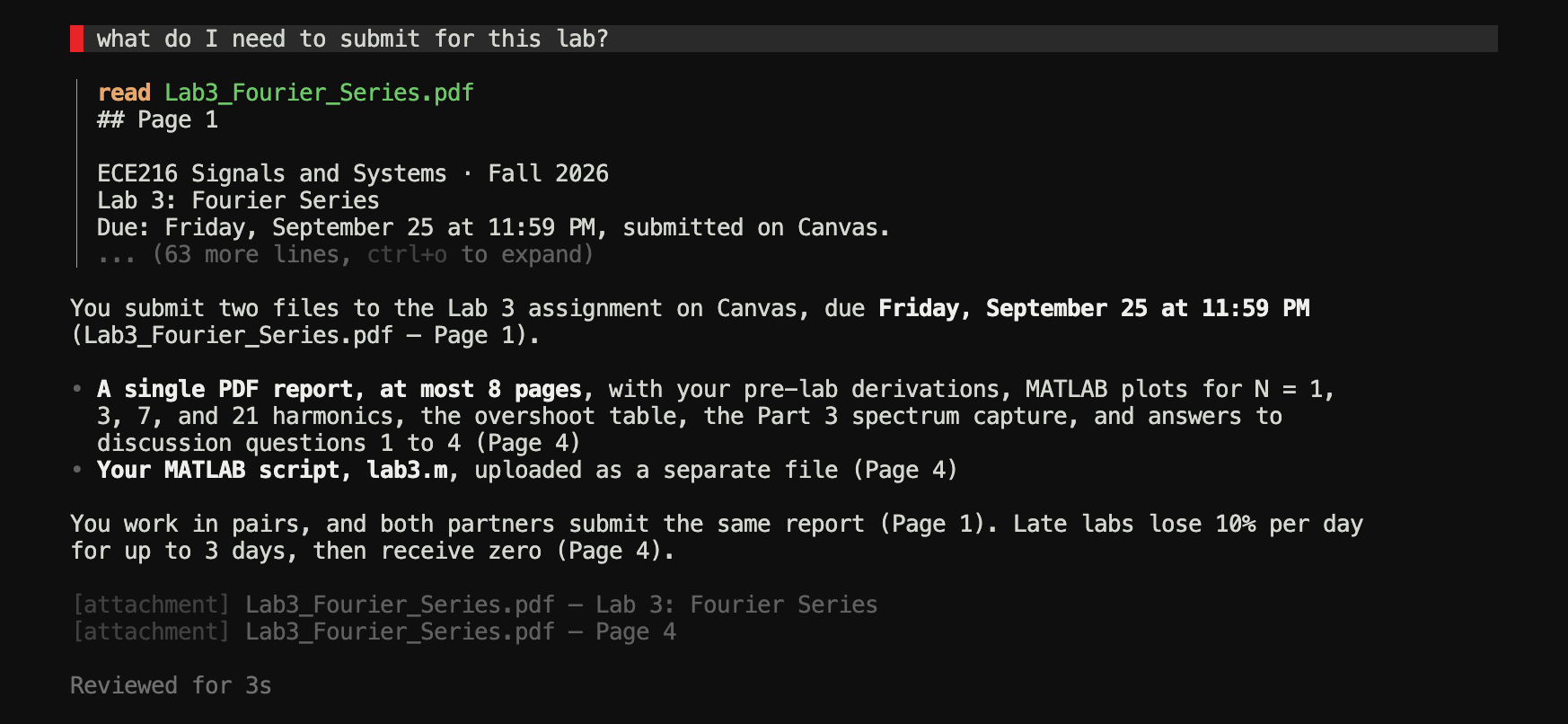
A workspace question goes through the most careful path. First canvas-cli checks whether a follow-up can be answered from something already read in this conversation, or whether one document clearly holds the answer, in which case it reads that document directly. Otherwise, including when the workup already covers the question, the assistant works in a loop of up to 30 tool calls so the answer is confirmed against the documents themselves. It plans which source is likely to hold the answer, calls a tool, looks at what came back, and decides what to read next. It is told to read documents rather than answer from search snippets, and to check a second source when a question compares two things.
Tools
In a workspace, the assistant can call these. Each call appears in the conversation as it happens:
| Tool | What it does |
|---|---|
search_workspace | Search the workspace and the course's documents; returns matching passages |
search_course | Search the whole course cache: modules, pages, assignments, quizzes, grading scheme, tools, announcements, lectures, and files |
read_file | Read a document, up to about 120,000 characters, or one page or heading of it |
list_files | List every document and file available |
download_course_file | Fetch a course file that ingestion skipped, and read it |
list_assignments | The course's assignments and due dates |
list_announcements | Announcement and discussion titles, optionally filtered |
read_thread | An announcement or discussion with all its replies |
open_lecture | Open a lecture's slides or recording |
open_resource | Open a workspace or course file, page, or link in your default app |
Every read starts with the document’s outline, so the assistant can go straight to Page 57 or a heading instead of reading everything. Tool output is collapsed to a few lines; Ctrl O expands it.
Search
Searches match the way people phrase course questions. Common words are dropped, words are reduced to their stems so “deadlines” finds “deadline”, and course vocabulary is treated as related: due and deadline, rubric and grading, late and penalty, lecture and slides, lab and practical, homework and pset, starter and template, among others. When two announcements match equally, the newer one ranks first.
Within a conversation the assistant remembers what it has already read, including which parts of a long document it has not seen yet, so a follow-up question does not start from zero.
Citations
Answers name the section each claim came from, down to the page of a PDF or the heading of a page: Lab3_Fourier_Series.pdf — Page 4, Syllabus — Grading. Under the answer, a line for each source shows its kind and the section that supports the answer. Slides are cited by slide, spreadsheets by sheet.
Checks
Before a workspace answer is shown, canvas-cli compares it with everything the assistant actually read. It checks:
- Dates, in any format, and whether a weekday written next to a date is really that day
- Figures: times, percentages, marks and points, counts, room numbers, sizes, and numbers written as words (“ten percent”)
- Mismatched pairs, such as a date that the schedule lists next to a different lab
- “Must” in an answer when the source only says “may” or “recommended”
Anything it cannot find in the evidence is named in a Grounding note under the answer:
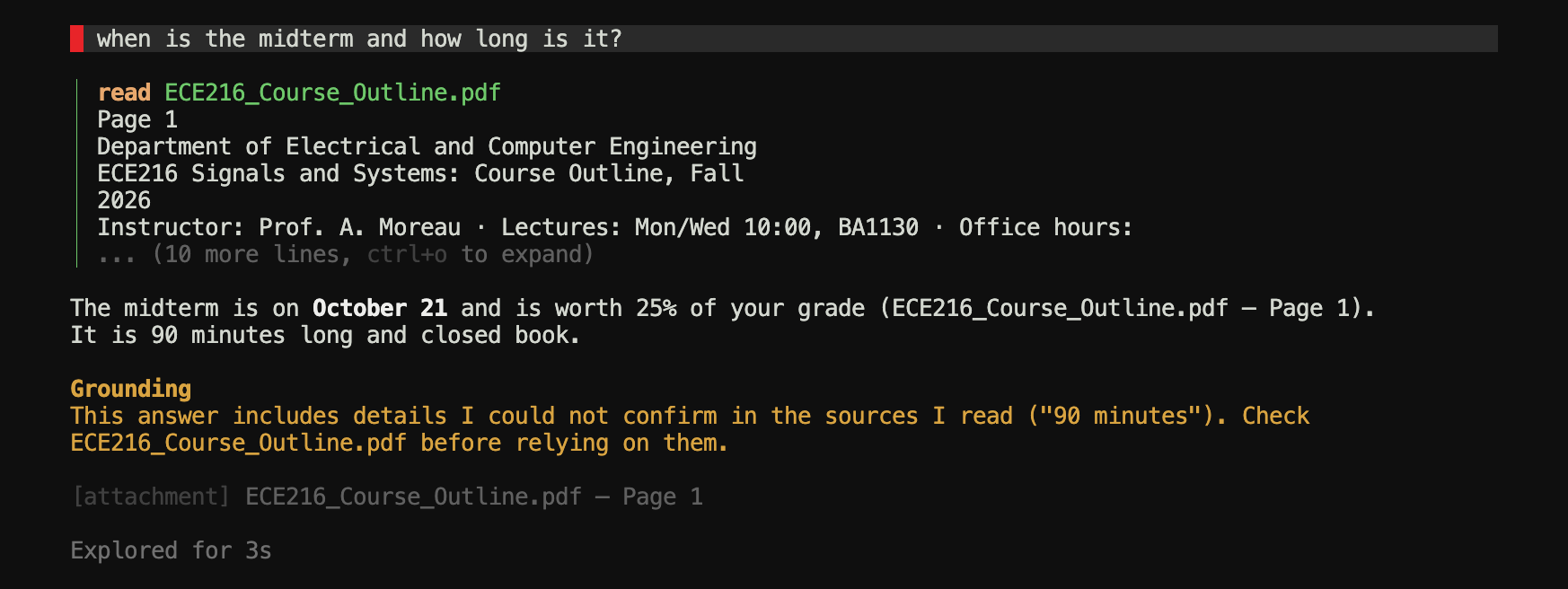
The same note appears, worded differently, when an answer rests on search snippets instead of a full read, or on the workup summary instead of a fresh look at the document. Numbers you used in your own question are not flagged.
When something isn’t there
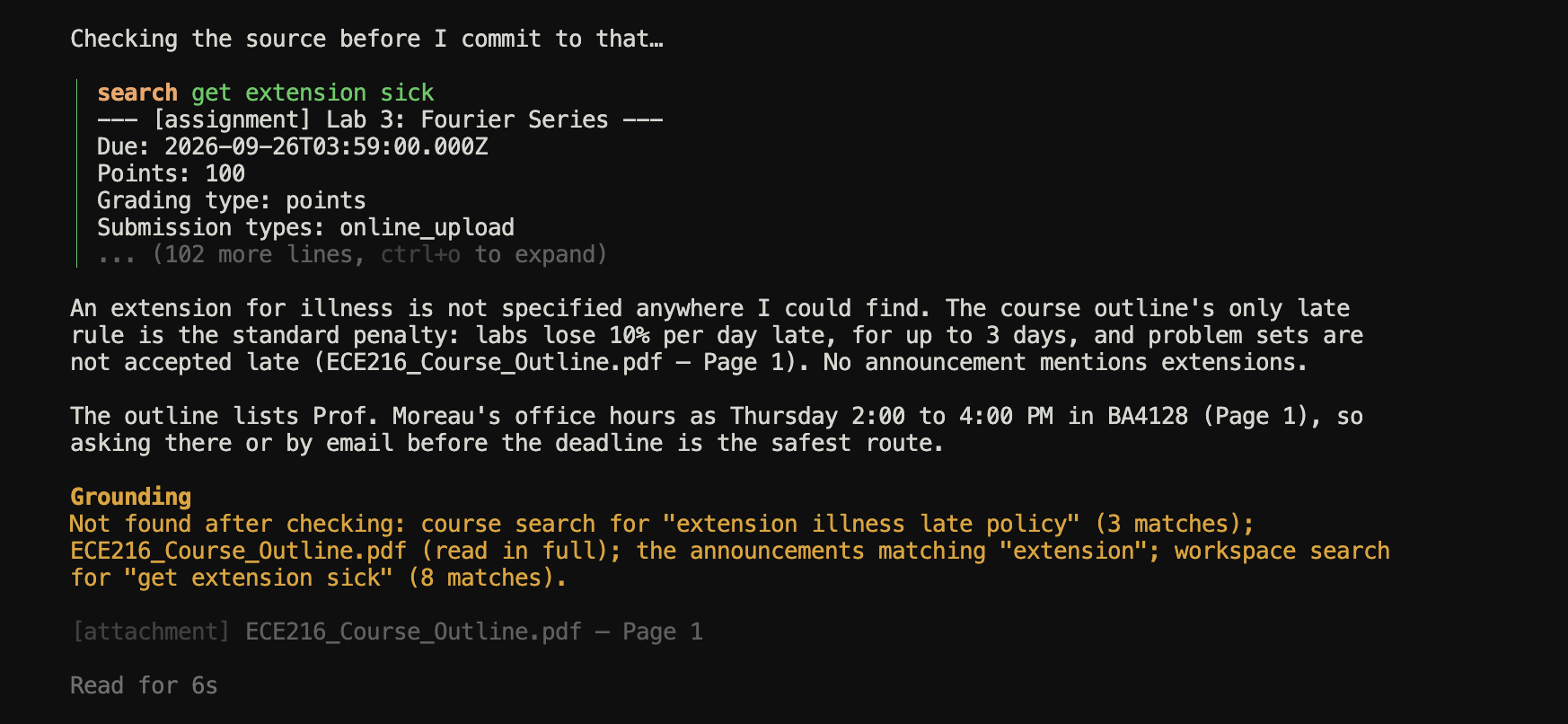
If the answer is that the course does not say, the note lists exactly where the assistant looked, so you can judge how thorough it was:
Recovery Pass
Models sometimes stop early. After the assistant answers, canvas-cli looks for signs of that and, if it finds one, makes a few more tool calls, including at most two document reads, outside the 30-step budget:
- An answer that says something was not found triggers the tools it never tried: the assignment list, announcements, and course and workspace search.
- An answer that quotes a date or figure from a search snippet gets that document read in full.
- An announcement that was listed but never opened gets opened.
- A comparison grounded in only one source gets the other side found and read.
You will see Checking the source before I commit to that… while it happens. If the extra calls turn up new evidence, the answer is rewritten from it; otherwise you see (Nothing new turned up, so the answer above stands as written.)
Tips
- Ask in a workspace when the details matter. That is where answers are fully checked and cited, and the assistant already knows which documents belong to the assignment.
- Name the part you mean. “What does Part 3 ask for?” sends it straight to the right section.
- Pin a file with
@to put it in front of the assistant directly. See @ Pins. - Start over with
/clearif an earlier answer keeps steering the conversation wrong. - Refresh the course with
/refreshafter your instructor posts something new; answers only see what has been downloaded.
what exactly do I submit, and in what format?
how is part 2 marked?
did the prof change the due date?
is lab 3 worth more than lab 2?
open the lab handout
Questions that work well in a workspace.