The interactive shell
One chat shell with three scopes, global, course, and workspace, plus the keys and input tricks that make it fast.
Three Scopes
Running canvas-cli with no command opens a single chat shell. What the shell knows about, and which commands it offers, depends on the scope you are in. There are three, and the header and the status line under the input always tell you which one you are in.
| Scope | What it covers | Get there with |
|---|---|---|
| Global | All your courses at once: deadlines, grades, announcements | /home |
| Course | One course: its files, modules, lectures, and assignments | /courses |
| Workspace | One assignment, with everything canvas-cli read to prepare it | /assignments |
/help lists only the commands that work in the current scope. Running a command in the wrong scope tells you where it works instead of failing silently, for example /plan is only available in a workspace. Open an assignment first..
Global
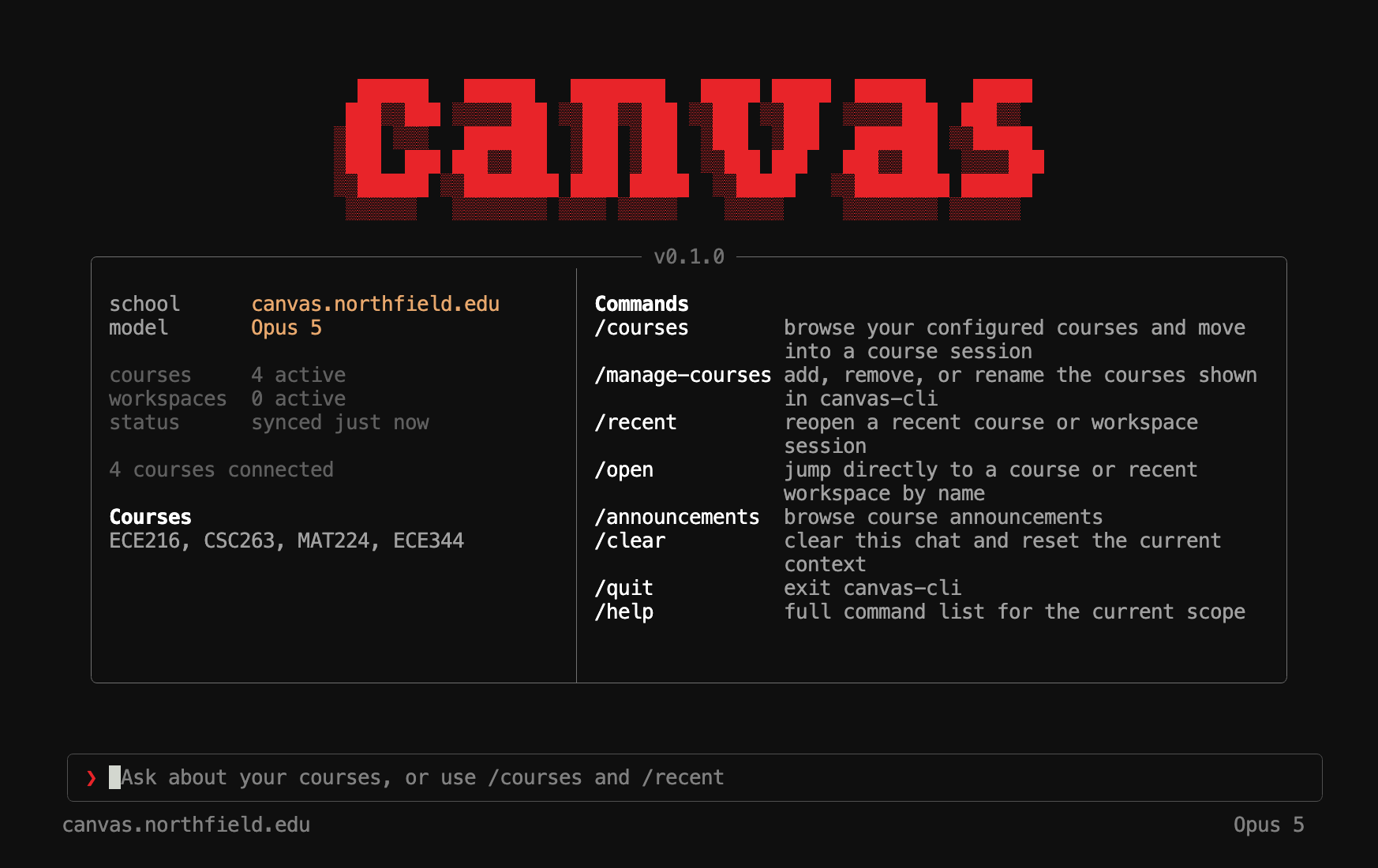
The home screen. The panel shows your school, the model in use, your courses, and recent workspaces, with the most useful commands beside them. Ask broad questions here, or use /timeline, /grade, and /announcements across every course.
Course
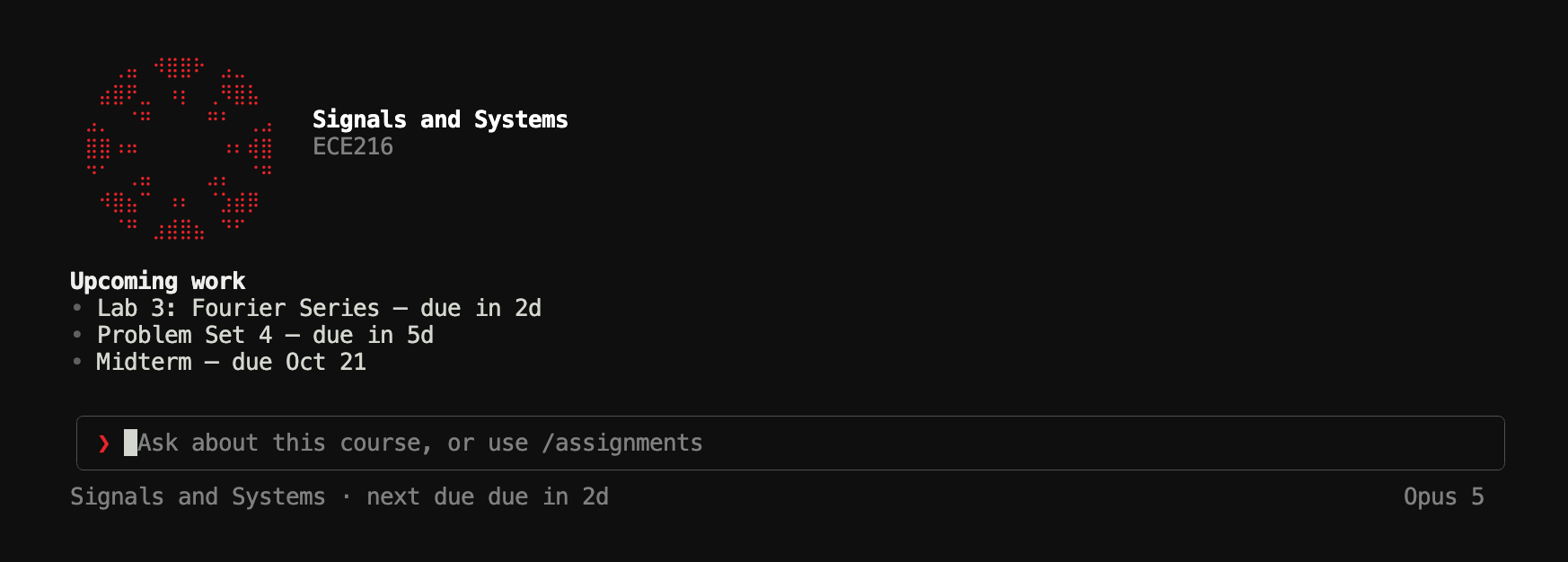
Entering a course shows its name and code, then what is due next. The shell opens immediately and loads the course’s assignments and cached material in the background; the status line reads loading course data until it is done. Questions here are answered from that course’s own files.
Workspace
An assignment you have opened. It starts with a summary of the assignment and adds commands for the brief: /overview, /requirements, /plan, /resources, /evidence, and /status. The status line shows Course > Assignment. See Assignment workspaces.
Moving Around
| Command | Where | What it does |
|---|---|---|
/courses | Global | Pick a course from your list. Type to filter. |
/assignments | Course | Pick an assignment. Overdue and upcoming work first; submitted work is dimmed. |
/recent | Global | Reopen a course or workspace you used before, most recent first. |
/open <name> | Global | Jump straight to a course by name or code, or to a recent workspace by name. With no name, it opens the recent list. |
/back | Course, workspace | Up one level: workspace to its course, course to global. |
/home | Course, workspace | Straight back to global. |
In course and workspace scope, /open opens files and links instead. See Opening things.
Typing
Type a question and press Enter. Start with / and a menu of the commands available here appears as you type; ↑ ↓ move through it and Tab completes the highlighted one.
| Key | What it does |
|---|---|
| Enter | Send the message, run the highlighted command, or complete the highlighted pin |
| Tab | Complete the highlighted command, file, or pin |
| Esc | Stop the answer being written, or close the command menu |
| Ctrl C | Stop the answer; with nothing running, clear what you typed; on an empty line, quit |
| Ctrl Y | Copy the last answer, same as /copy |
| Ctrl O | Expand or collapse the output of the assistant's tool calls |
| ↑ ↓ | Scroll the conversation, or move through a suggestion list |
| PgUp PgDn | Scroll a page at a time (also Ctrl P and Ctrl N) |
| Home End | Jump to the start or the latest message of the conversation |
You can keep typing while an answer is being written, but Enter does nothing until it finishes; press it again then to send. If you stop an answer before any of it appears, your question goes back into the input so you can edit it.
@ Pins
In a course or workspace, you can attach a file to your next question by typing @ and its name. A list of matching files appears as you type; Tab completes one.
@lab3_fourier_series_pdf summarize the pre-lab in three bullet pointsPin names are the file’s title in lower case, with spaces, dots, dashes, and slashes turned into underscores. You only need enough of the name to be unambiguous: an exact match wins, then a unique prefix, then a unique fragment. If a pin matches nothing, or more than one file, canvas-cli tells you and sends nothing. A pin has to start a word, so an @ inside an email address is left alone.
Anything canvas-cli has on disk can be pinned: workspace files such as plan.md and notes.md, downloaded course files and files inside zips, extracted pages and documents, and PDFs you exported. Up to 15,000 characters of the file are included with your question.
Sessions
Every scope keeps its own conversation: one for global, one per course, and one per workspace. Leave a course and come back next week and the conversation is where you left it, and in a workspace the assistant remembers what it already read. Conversations are saved as you go, and again if the terminal closes unexpectedly.
/clear starts the current scope’s conversation over. In a workspace it also resets what the assistant remembers, which helps when an earlier answer is steering later ones in the wrong direction. Conversations live in .canvas-cli/chat-sessions/; see Local files.
/copycopies the last answer,/copy last 3the last three messages, and/copy allthe whole conversation as Markdown./quit(or/exit,/q, or Ctrl C on an empty line) saves and exits.